

Best for
Sharing a Zebra label proof with QA, operations, a vendor, or a support ticket without asking reviewers to open printer tooling.
Paste Zebra ZPL, choose printer density, preview the label, and download a clean PDF proof. Use it for shipping labels, ERP templates, carrier review, and non-technical approvals before printing.
ستظهر معاينة ZPL هنا.
Rendered by Labelary. PNG exports the selected label; PDF exports all labels. Verify printing and scanning on real equipment.
Use the same ZPL string your ERP, WMS, carrier integration, or label template sends to a Zebra printer.
Render the label at 203, 300, or 600 DPI so the PDF proof matches the intended printer class.
Share the PDF with QA, operations, or customers while keeping the editable ZPL source available for engineers.
Export a PDF after previewing the exact ZPL so non-technical reviewers can approve layout, copy, barcode placement, and missing fields.
Share a proof with operations or a warehouse team when a carrier label, carton label, or return label needs visual confirmation.
Attach a PDF proof to ERP, WMS, carrier, or printer support tickets while keeping the editable ZPL source available for engineers.
Use PDF when people need a document proof. Use PNG when the label preview must be embedded in a chat, bug report, or visual diff.
Use the PDF as a review artifact. Keep the original ZPL for production printing so barcode commands, printer settings, and variable fields remain native.
Attach the PDF proof to a ticket or approval note with enough context for another person to reproduce the label.
PDF proof checklist:
- Source ZPL payload or template version
- Printer model and density
- Label size and media type
- Expected barcode scan result
- Reviewer and approval date
- Physical print sample completed: yes/noSharing a Zebra label proof with QA, operations, a vendor, or a support ticket without asking reviewers to open printer tooling.
Render the exact ZPL at the target density, download the PDF proof, and keep the source ZPL beside the approval record.
Use the field inspector or approval report when the PDF exposes clipping, missing text, or barcode placement problems.
Use two complete ^XA…^XZ labels, with distinct LABEL A and LABEL B text.
PNG exports the selected zero-based index. PDF exports all labels in their source order at the selected page size.
Index 1 is the second label. A single-label input with index 1 fails; choose 0. Old images are invalidated when source/settings change.
Preview/PDF uses Labelary. PDF is a proof, not a replacement for the original production ZPL; verify output with your printer workflow.
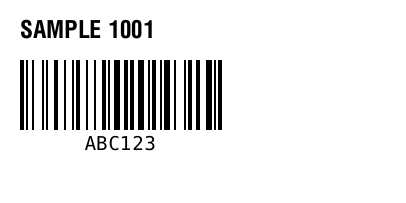
^XA
^FO20,20^A0N,24,24^FDSAMPLE 1001^FS
^FO20,60^BY2
^BCN,70,Y,N,N^FDABC123^FS
^XZ
Maintained by ZPLPreview · Updated 2026-11-01 · Engine verification; no physical printer certification. About · Contact