

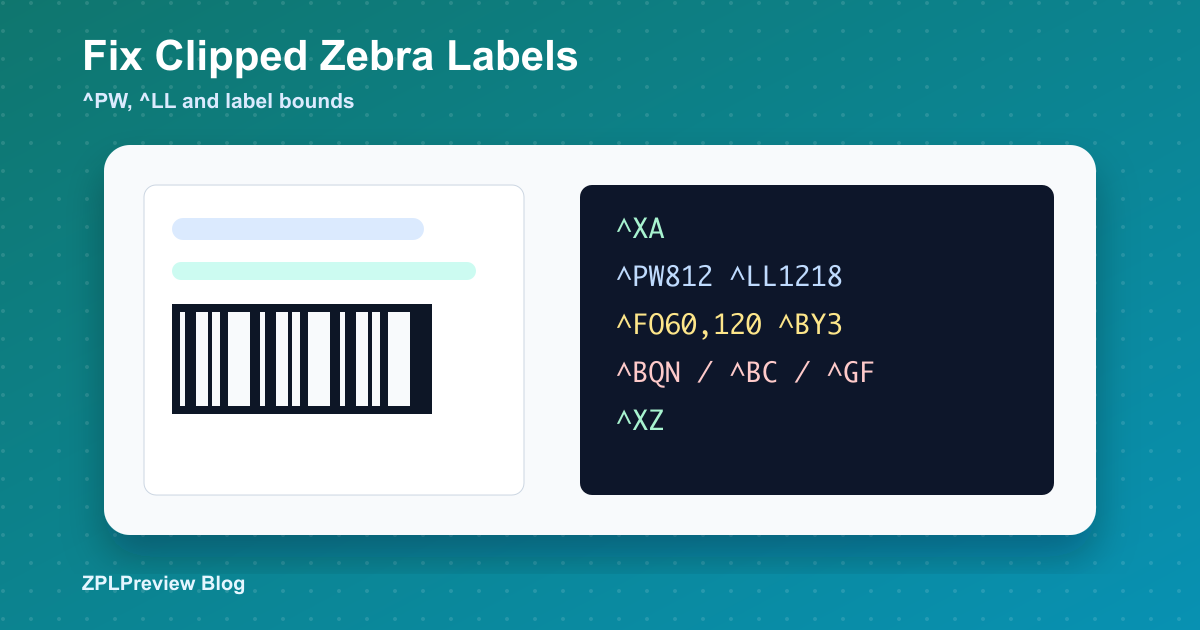
Why Your Zebra Label Is Clipped and How to Fix ^PW / ^LL
A clipped Zebra label usually feels mysterious because the ZPL may still render a partial label. Text on the right edge disappears, a barcode is cut in half, or the bottom of a 4x6 shipping label never prints. In most cases the first things to check are ^PW, ^LL, density, and the label coordinates.
This guide shows a practical debugging order. You can paste the sample into ZPL Viewer, change the width or length, and see the effect before sending another test print to a real device.
Start with physical label size
ZPL works in dots, not inches or millimeters. A 4x6 inch label is not always 812 x 1218; that number is only correct for 203 DPI. The same physical label is about 1200 x 1800 at 300 DPI. If a 203 DPI template is sent to a 300 DPI workflow without scaling, everything becomes physically smaller. If a 300 DPI template is sent to a 203 DPI printer, it can overflow the printable area.
4x6 at 203 DPI: 812 x 1218 dots
4x6 at 300 DPI: 1200 x 1800 dots
4x6 at 600 DPI: 2400 x 3600 dots
Use the ZPL Label Size Calculator to convert label size to dots before editing commands by hand.
What ^PW actually controls
^PW sets the print width in dots. If fields are placed beyond that width, they may be clipped even if the label stock is wide enough. The most common mistake is copying a label body from another printer and leaving the old ^PW at the top.
^XA
^PW812
^LL1218
^FO760,80^A0N,40,40^FDToo far right^FS
^XZ
At 203 DPI the field starts near the right edge. The text itself extends beyond the printable width, so the output gets cut off. Move the field left, reduce the font, or increase ^PW only if the actual printer and media support that width.
What ^LL actually controls
^LL sets label length. A short ^LL can cut off the bottom of a shipping label, packing slip stub, return barcode, or footer text. If the template uses a large Y coordinate near the bottom, confirm that ^LL is larger than the field origin plus field height.
^XA
^PW812
^LL900
^FO60,980^A0N,34,34^FDBottom note will not fit^FS
^XZ
Here the footer begins at y=980, but label length is only 900 dots. The layout cannot fit. Increasing ^LL to the real label length or moving the footer upward fixes the issue.
Check fields, not just label settings
After ^PW and ^LL, scan the label for high-risk commands. Large text with ^A, boxes with ^GB, graphics with ^GF, and barcodes with ^BC or ^BQ can all extend beyond their starting point. A field origin is not the final boundary.
When clipping happens only on the printer
If the online preview looks correct but the printer output is clipped, inspect printer configuration. Media type, calibration, print mode, and stored defaults may override assumptions in the template. Use Zebra Printer Settings to generate controlled setup snippets, but keep hardware changes separate from template changes so you know which fix worked.
Clipping checklist
- Confirm the label stock size in inches or millimeters.
- Convert that size to dots for the target DPI.
- Set
^PWto the real printable width. - Set
^LLto the real label length. - Check whether fields extend beyond their
^FOorigin. - Review barcode quiet zones and large graphics.
- Compare the old and new template before release.
Most clipped labels are not broken printers. They are mismatches between physical media, dot density, template width, and field placement. Once those four pieces agree, ZPL becomes much easier to debug.